How Sales Orders Work
Sales Order lifecycle, line editing, payments, invoices, fulfillment, tracking, and controlled changes
What a Sales Order Is
A Sales Order is the operational record after the customer offer is accepted or an order is entered. It is the shared record for sales, AR, payments, invoices, warehouse/3PL handoff, fulfillment status, tracking, customer email, audit history, and reporting.
Sales Orders can be created from approved quotes or entered through supported order paths. They should stay linked to the Account, Contact, Quote, and Opportunity whenever those records exist.
Lifecycle
Main Sections
Sales Order record pages expose several operational surfaces:
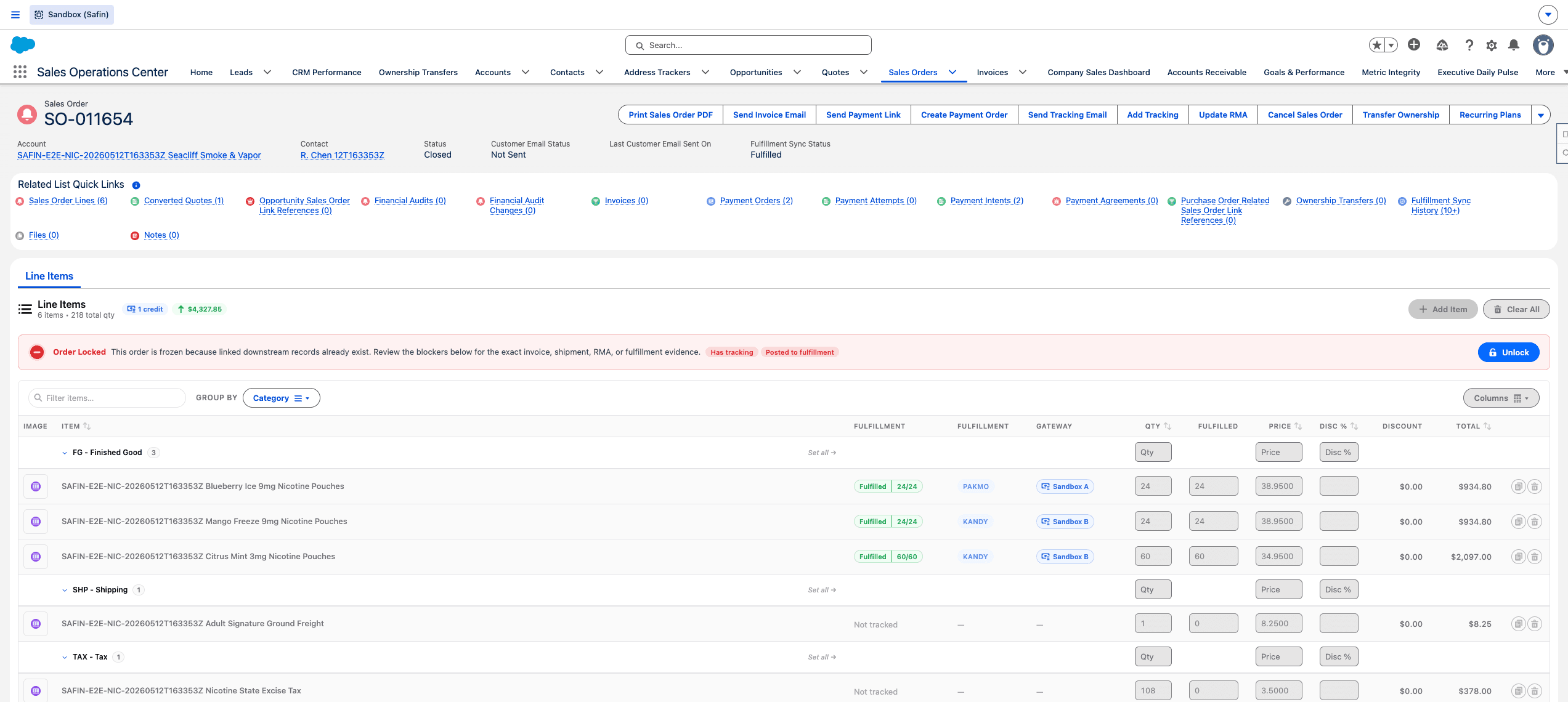
Safin dev sandbox Sales Order record showing line fulfillment state, gateway context, totals, and downstream lock signals.
| Section | Use |
|---|---|
| Summary | Customer, contact, fulfillment state, order status, lifecycle blockers, returned/RMA correlation, totals, and key health signals. |
| Line Items | Add, edit, remove, group, filter, and save Sales Order lines through the custom editor. |
| Payments | Payment orders, payment attempts, saved method readiness, payment links, receipts, and balance context. |
| Shipping/Fulfillment | Fulfillment status, shipped lines, tracking, warehouse/3PL sync context, and manual tracking actions. |
| PDF Preview | Customer/order PDF output. |
| Related records | Invoices, tracking records, sync state, notes, files, audits, and operational history. |
Sales Order Lines
Sales Order lines are not just a list of products. They drive revenue, credits, shipment demand, payment-order sync, inventory/warehouse signals, fulfillment sync, commissions, GL/accounting intelligence, and customer-facing order PDFs.
Use the Line Items editor instead of raw related-list record creation. The editor is where locking, setup warnings, fulfillment badges, payment gateway context, and save validation are visible.
Locking and Mutability
Some Sales Orders become restricted after operational work begins. The Line Items editor displays a lock banner when changes are limited. Non-admin users may be blocked from editing locked orders, and admin unlocks should be used deliberately.
If an order is already paid, fulfilled, invoiced, synced, or tied to downstream history, do not change lines casually. Use the supported credit, adjustment, cancellation, reversal, or admin process that matches the situation.
Actions
Use the custom actions on Sales Orders:
| Action | Use |
|---|---|
Print Sales Order PDF | Generate customer/order PDF output. |
Send Invoice Email | Send invoice communication from the order. |
Send Payment Link Email | Send a collection link tied to the order/payment context. |
Create Payment Order | Create a payment order for collection. |
Manage Recurring Plan | Manage recurring payment behavior when applicable. |
Add Tracking | Add or update tracking manually when appropriate. |
Send Tracking Email | Send customer tracking communication. |
Manage Fulfillment Sync | Review or control fulfillment sync behavior. |
Transfer Ownership | Move ownership through the audited transfer flow. |
Delete Sales Order | Use the controlled deletion flow when removal is required. |
Payment and Invoice Handoff
Sales Orders feed invoices, payment orders, payment links, payment attempts, receipts, transactions, disputes, and AR dashboards. If payment collection fails, check the Payment workspace and gateway/token readiness before changing order totals.
Fulfillment and Tracking Handoff
Physical lines flow into warehouse or 3PL fulfillment. Provider sync can write shipped lines, tracking, packed quantity, provider references, and sync status back to the Sales Order.
Missing tracking is not always the same as missing fulfillment. Check packed lines, shipped lines, external shipment or fulfillment IDs, provider status, and fulfillment history before manually changing status.
Last updated on