Adding Items to Quotes and Sales Orders
Practical guide to product selection, line editing, stock checks, item warnings, and saving lines
Where Items Are Added
Items are added from the custom Line Items editor on Quote and Sales Order records. The same editor pattern is used for both objects.
Do not add quote/order lines from raw Salesforce related-list controls for normal selling. The custom editor is where item eligibility, setup warnings, stock context, gateway context, fulfillment context, locking rules, and save validation are visible.
Item Add Flow
Add Item Flow
- Open the Quote or Sales Order record.
- Find the
Line Itemssection. - Select
Add Item. - Use the product selector to search by SKU or product name.
- Filter by group, stock status, max price, minimum available quantity, unit of measure, and quote/sale availability.
- Select one or more products.
- Select
Add Selected. - Review the added rows in the Line Items editor.
- Set quantity, price, discount %, and any manual fulfillment count when that mode is available.
- Review warnings and setup blockers.
- Select
Save.
Product Selector
The selector groups products by item group and shows stock, fulfillment, price, gateway, package, availability, open PO, open Sales Order, and setup-warning context.
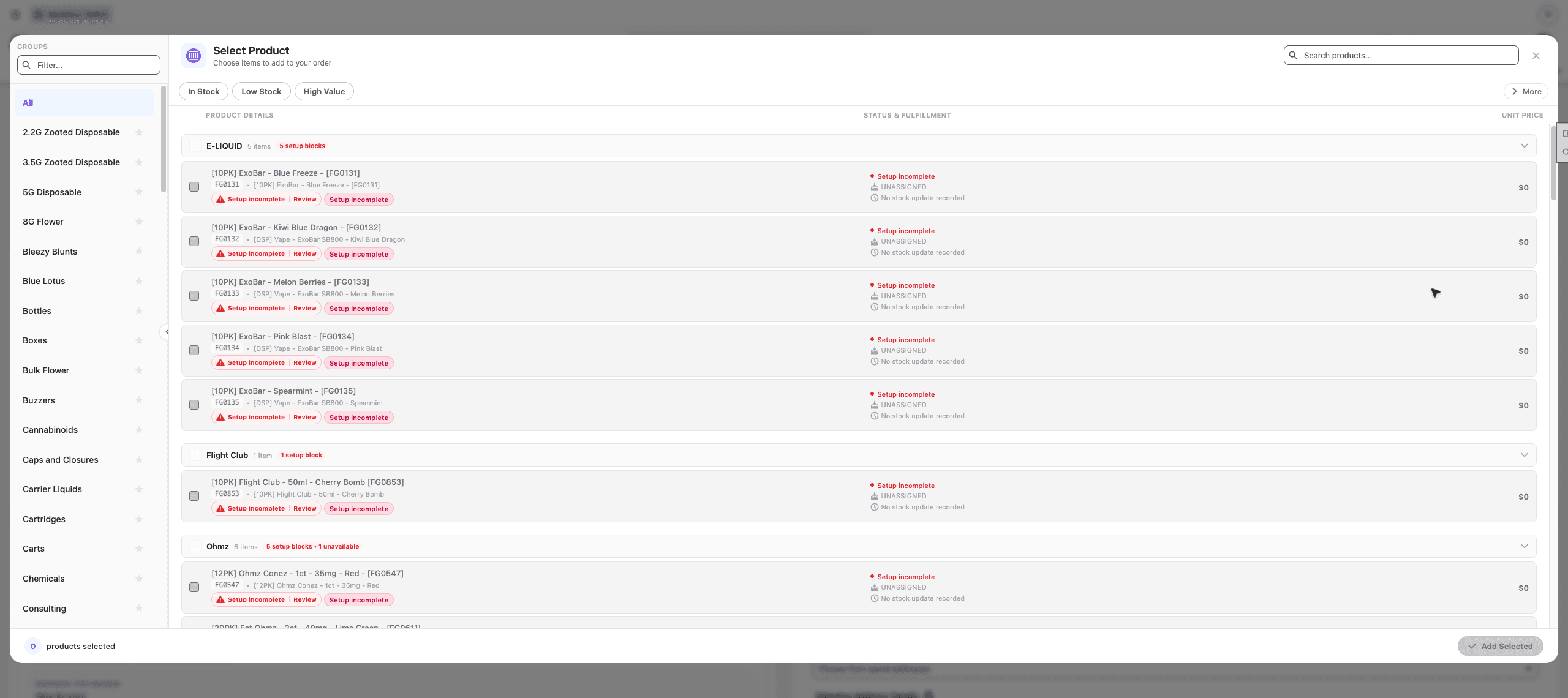
Safin dev sandbox Add Item selector showing item groups, product search, stock filters, setup blockers, fulfillment context, and disabled add behavior until products are selected.
| Control | Use |
|---|---|
| Search | Find by product name or SKU. |
| Groups sidebar | Narrow to a product family or saved favorite group. |
| In Stock / Low Stock / High Value | Fast filters for common selling decisions. |
| More Filters | Filter by max price, minimum available, unit of measure, active status, and availability for quote/sale/purchase. |
| Product tooltip | Inspect price, on-hand, estimated free quantity, group, package, warehouse, gateway, open POs, open SOs, and next inbound signal. |
| Setup warning | Review item setup issues before adding. |
Line Editor Columns
After products are added, use the Line Items table to verify and edit:
| Column | Sales meaning |
|---|---|
| Item | Product/SKU selected from the catalog. |
| Description | Customer or operational item detail. |
| Availability | On-hand/availability signal for promising quantity. |
| Unit of Measure | How the item is sold or counted. |
| Fulfillment Provider | Whether the line routes to internal warehouse or 3PL-style fulfillment. |
| Gateway | Payment gateway or route context attached to the item. |
| Warnings | Item rules, setup problems, and configuration issues. |
| Qty | Ordered or quoted quantity. |
| Price | Unit price. |
| Disc % | Structured discount percentage. |
| Discount | Calculated discount amount. |
| Total | Calculated line amount. |
The toolbar can filter existing lines, group them by category/group/price range, and show or hide optional columns.
Warnings and Blockers
Warnings and blockers are not decoration. They explain whether the line is safe for quote, sale, purchase, fulfillment, payment, or reporting.
| Signal | What to do |
|---|---|
| Informational warning | Read it and keep context for the approver or operator. |
| Setup warning | Review the setup issue and fix the item if it would break quoting/order processing. |
| Blocking error | Do not add or save the item until the item setup, availability flag, price, quantity, gateway, or workflow issue is corrected. |
| Not available for quote/sale | Use another item or ask an admin/operator to review item availability settings. |
| Missing gateway or fulfillment context | Escalate before promising payment collection or shipment behavior. |
Quantities, Prices, Discounts, Credits
Physical goods should normally use positive quantities and nonnegative prices. Nonphysical items such as credits, shipping, service, labor, or adjustments can behave differently and should be reviewed carefully.
Use structured fields for changes:
| Need | Correct place |
|---|---|
| Sell more or less product | Change Qty. |
| Change customer unit price | Change Price. |
| Show a discount | Use Disc % when the discount should be visible and reportable. |
| Add a credit | Use an item configured as a credit/nonphysical item. |
| Add shipping/service/labor | Use the configured nonphysical item, not a note on a product line. |
Save Behavior
Line changes are staged until Save is selected. The editor shows an Unsaved state and a sticky save footer when changes are pending.
If you added the wrong products, remove them or use Clear All, then save. If you leave with unsaved changes, the editor warns before discarding work.
Stock Lookup Before Promising
Use Stock Lookup when the customer is sensitive to availability or timing. Stock Lookup shows SKU/product search, category filters, stock status, quantity on hand, open demand, incoming quantity, upcoming inbound orders, warehouse, and stock-updated timing.
Stock Lookup helps decide what to quote, but the Quote or Sales Order Line Item editor remains the place where the actual customer line is created.
Last updated on